Skip to content
Material Design 1
Main Navigation
v3
v2
v1

English

简体中文
繁體中文
Español
Français
Русский
Português – Brasil
Deutsch
日本語
한국어
Italiano
Polski
Türkçe
čeština
magyar

English

简体中文
繁體中文
Español
Français
Русский
Português – Brasil
Deutsch
日本語
한국어
Italiano
Polski
Türkçe
čeština
magyar

Appearance

Sidebar Navigation

Material Design

Environment

Material properties

Elevation & shadows

What's new

Motion

Material motion

Duration & easing

Movement

Transforming material

Choreography

Creative customization

Style

Color

Icons

Imagery

Typography

Writing

Layout

Principles

Units & measurements

Metrics & keylines

Structure

Responsive UI

Split screen

Components

Bottom navigation

Bottom sheets

Buttons

Buttons: Floating Action Button

Cards

Chips

Data tables

Dialogs

Dividers

Expansion panels

Grid lists

Lists

Lists: Controls

Menus

Pickers

Progress & activity

Selection controls

Sliders

Snackbars & toasts

Steppers

Subheaders

Tabs

Text fields

Toolbars

Tooltips

Widgets

Patterns

Confirmation & acknowledgement

Data formats

Empty states

Errors

Fingerprint

Gestures

Help & feedback

Launch screens

Loading images

Navigation

Navigation drawer

Navigational transitions

Notifications

Offline states

Permissions

Scrolling techniques

Search

Selection

Settings

Swipe to refresh

Growth & communications

Introduction

Onboarding

Feature discovery

Gesture education

Usability

Accessibility

Bidirectionality

Platforms

Platform adaptation

Android

Resources

Color palettes

Devices

Layout templates

Roboto & Noto fonts

Sticker sheets & icons

Shadows

On this page

Transforming material ​

Material can make surfaces feel alive by multiplying and dividing them, and changing their shape and size.

Rectangular transformation

Asymmetric
Symmetric


Radial transformation

Symmetrical and circular
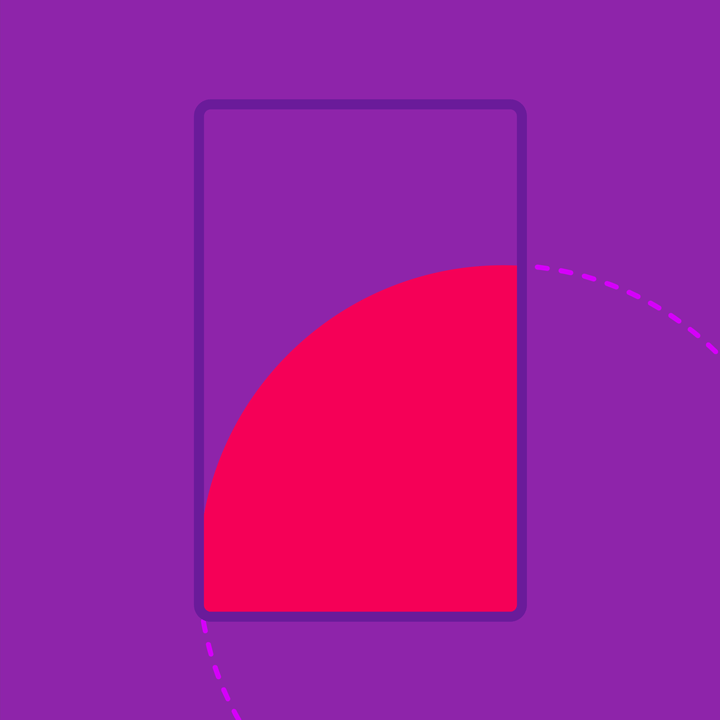
Material Design: Transforming surfaces with shape and size

Rectangular transformation ​

When material changes shape and size, its width and height change asynchronously along a motion curve. These changes are choreographed with nearby surfaces inside or around the changing element.

All surface transformations that occur on-screen, such as the ones below, use the standard curve.

Transforming width and height

Elements may be expanded or collapsed using either asymmetric or symmetrical width and height changes.

Asymmetric transformations involve the width and height changes at different rates. They work best when multiple elements or position changes are involved.

Asymmetric transformation

To expand an element’s size, begin transforming the width of an element slightly before transforming the height. To collapse an element’s size, begin transforming the height slightly before the width.

Symmetrical transformations involve width and height changes occurring at the same rate. They are better for changes to a single element that occur along a single axis.

Symmetric transformation

Transforming width and height at the same time is a less detailed animation approach best suited to simple shape changes. These transformations can have slightly shorter durations than asymmetric ones.

When an element expands asynchronously, the items it contains (such as text or images) change size at a constant aspect ratio to prevent unnatural stretching. For more information on how to transition content within a surface, see Choreography.

Content (such as a full-width image) transforms at a constant aspect ratio, even as its container (such as a larger card) transforms asynchronously along a motion curve.
Containers with full-bleed content (such as a full-bleed image) may expand synchronously.

Radial transformation ​

Radial transformations are symmetrical, circular visualizations that originate from a user’s point of touch. They are commonly used on circular surfaces that morph into other shapes.

Do.

Radial transformation should be used on circular surfaces that morph into rectangular surfaces, or for creating new surfaces from the point of input.

Don't.

Don’t use a radial transformation when transforming between two rectangular shapes.

Don't.

Don’t expand an oval’s width and height asynchronously.

Don't.

Don’t transform complex shapes.

Transformations can originate either from the object’s current location or from the center of the final surface being formed.

During expansion, the floating action button moves in an arc towards its destination as it expands into a card.
The center of the floating action button stays in place during the transformation, creating a subtler expansion effect.

Joining & Dividing ​

Joining

Material may join with other material, or it may divide into multiple pieces. As two pieces of material approach one another, their edges meet and margins overlap before the movement completes.

Dividing

When material divides into multiple pieces, the pieces begin separation at the start of the movement.

Shadows

Shadows from separated material do not appear above sibling elements.

Example of material joining and dividing
Pager
Previous pageMovement
Next pageChoreography

Released under the Apache-2.0

Copyright © 2014-Present Google

https://m1.material.io/motion/transforming-material.html

Released under the Apache-2.0

Copyright © 2014-Present Google