Split screen
Android only
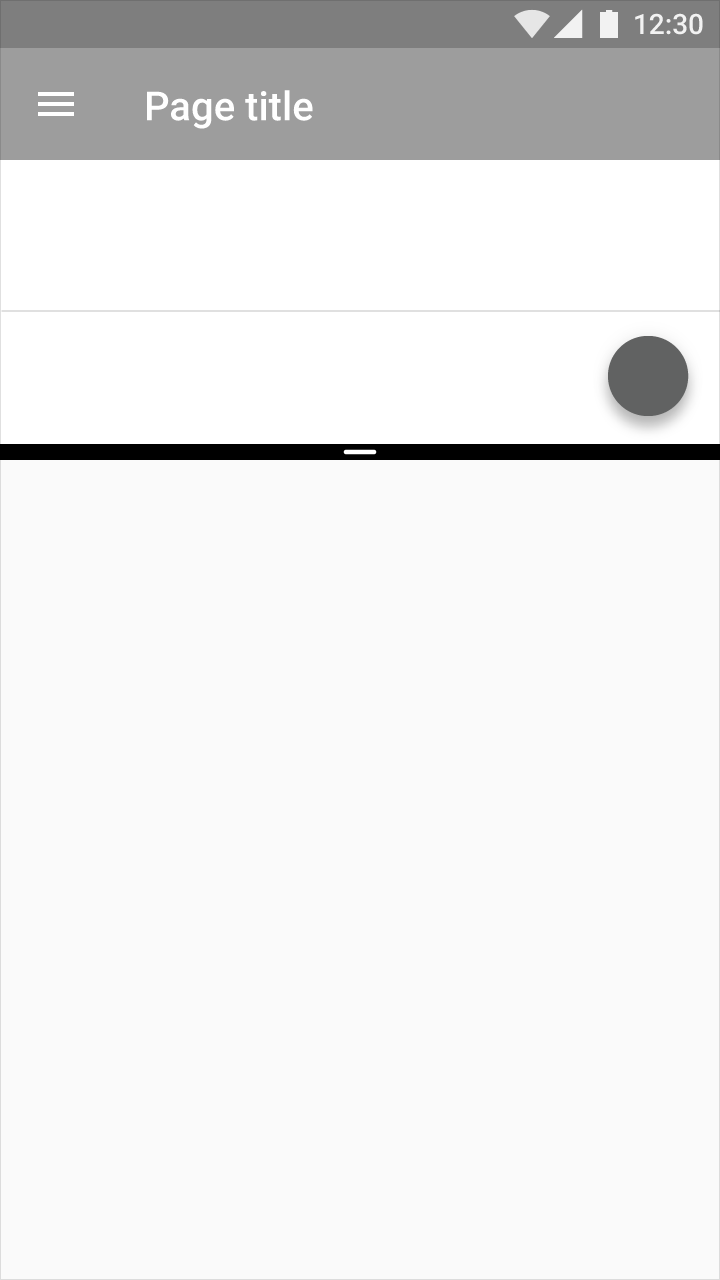
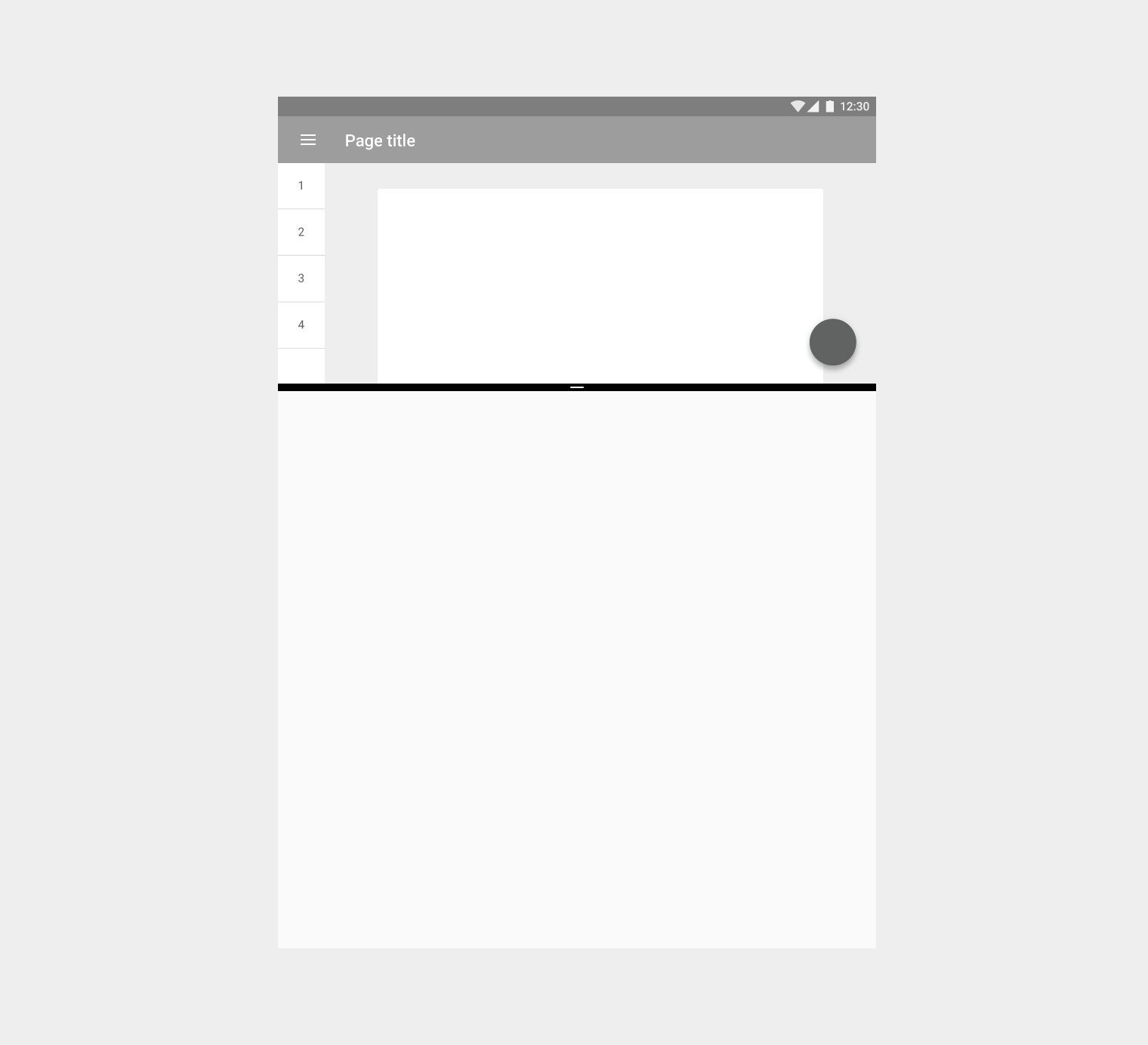
Split-screen mode allows two activities to be visible on screen at the same time.
Usage
User interaction required
Apps are not allowed to invoke split-screen mode by themselves; the user must activate it.
Launching new activities
When an app launches a new activity, it will launch within the same portion of the screen by default. Apps will be resized to fit the split-screen view as necessary (unless your app isn’t compatible with the split-screen format).
When split-screen mode is active, apps may launch new activities in the opposite portion of the screen if the following criteria are met:
- The original and new activities are related to each other and usable while in split-screen mode
- The task the app helps accomplish warrants displaying two activities at once, and hiding the other app that was open
- It is clear that the app will enter split-screen mode, such as with a button stating “Open in new window”
Behavior
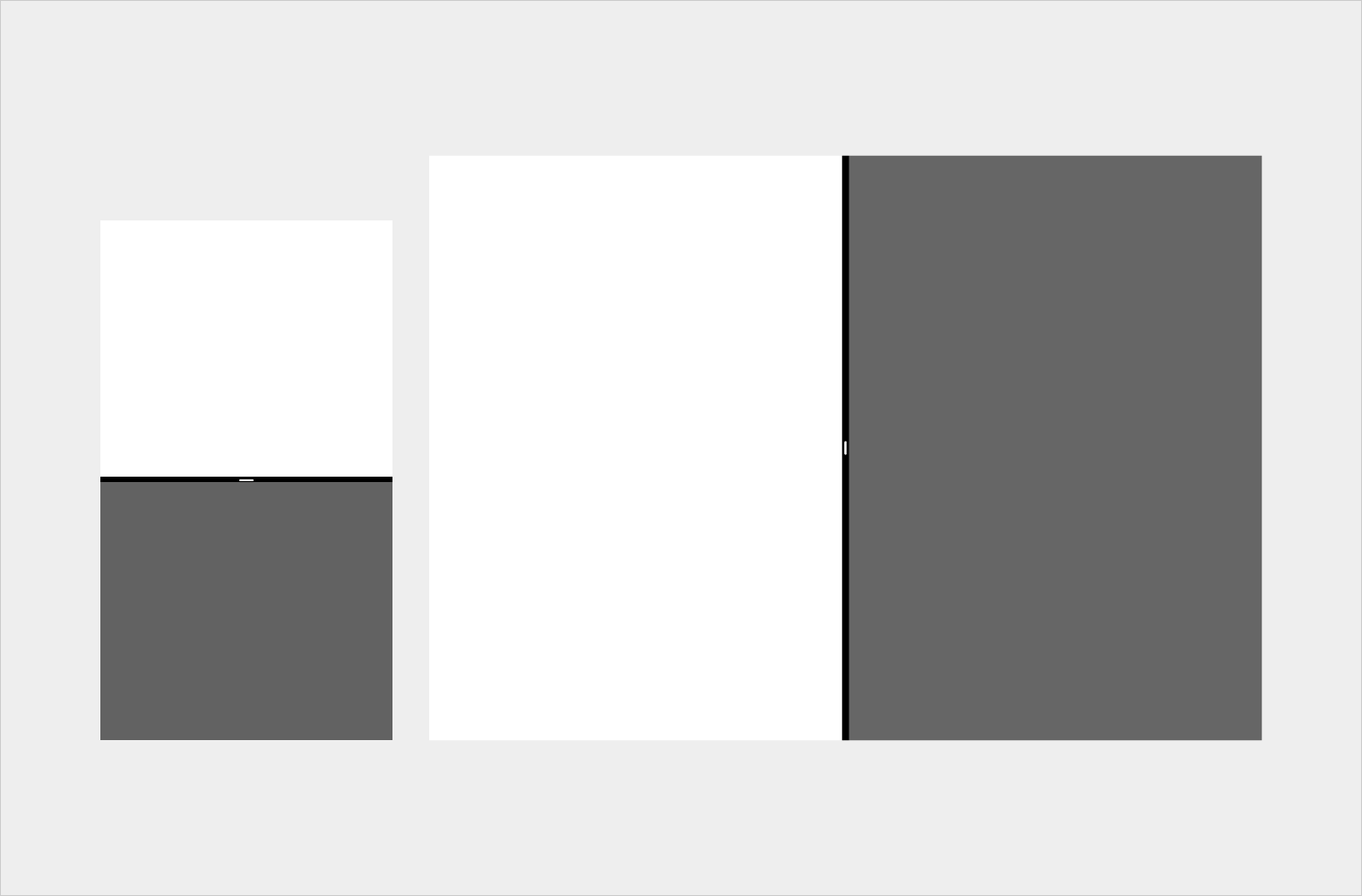
Split-screen mode remains active until the user cancels it or switches to an incompatible app.
Resizing split screen
Users may move and resize each screen in split-screen mode by dragging the divider between the two split screens.
Edge swipe gestures
When split-screen mode is active, the edge swipe gesture will likely not work as intended. Because split-screen mode relies on swiping to resize each split screen, if your app also relies on edge swipes to perform actions, then it’s possible that the swipe will either trigger screen resizing or an action in your app.
To avoid this, edge swipes should not be the only way to perform actions in your app. There should be an alternative method to perform each action.
For example, the navigation drawer enables an edge swipe to open the drawer, but it is also accessible by pressing the menu icon.
Layout
To support split-screen usage, viewable content should be scaled to an appropriate size and density.
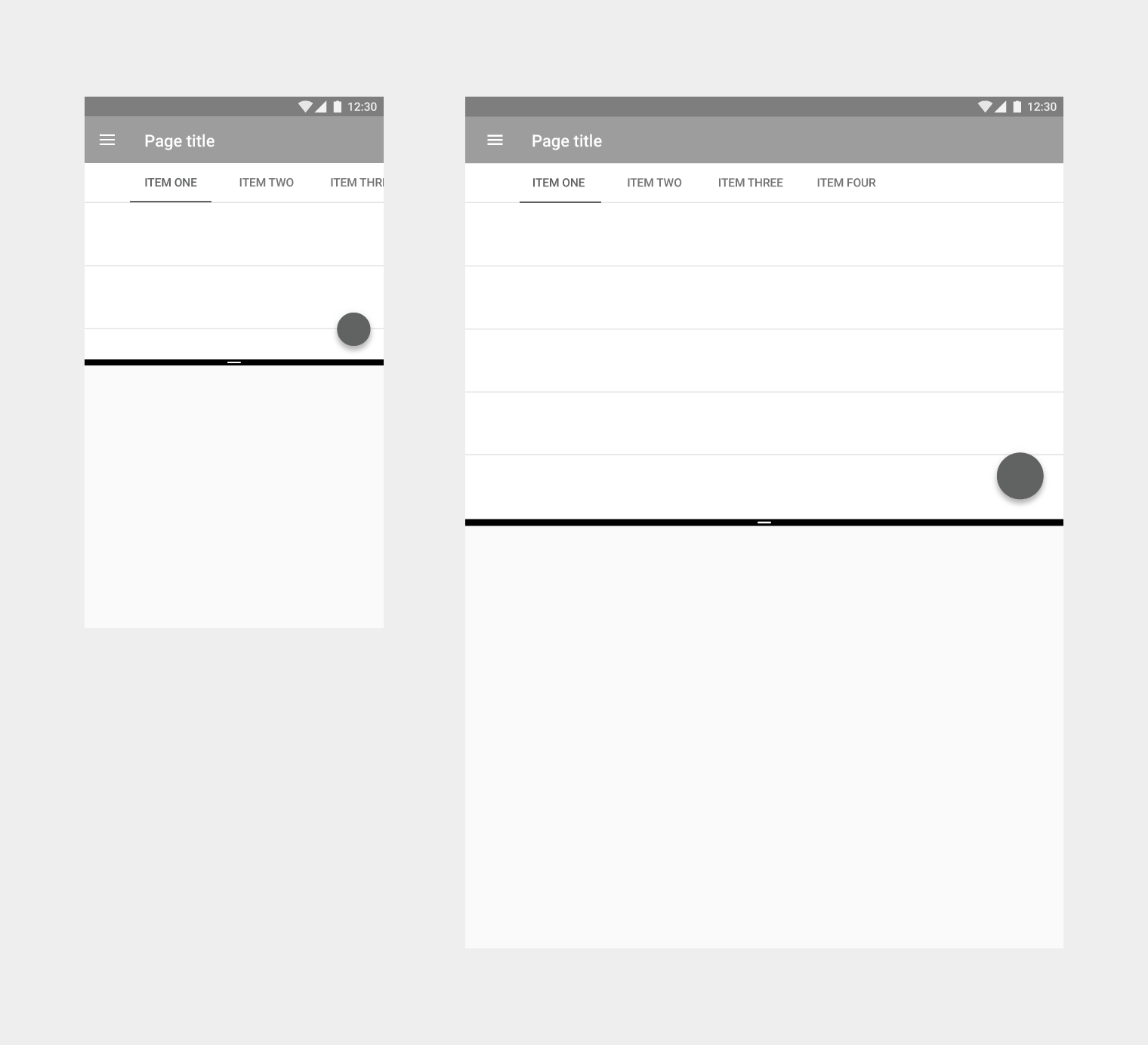
Primary controls should be adapted for split-screen mode. For example, navigation tabs may be collapsed into a menu.
Responsive UI
Apps in split-screen mode should elegantly adjust across device sizes and orientations.
Changing a device’s orientation should not cause the UI to change unexpectedly. For example, an app displaying a video in one of the split screens (in portrait mode) should not begin playback in full-screen mode if the device rotates to landscape mode.
Apps may use the same or different layouts for mobile and tablet:
- Apps with similar layouts for mobile and tablet may switch between the tablet and mobile UIs when the app is resized, as the transition will not be jarring
- Apps with completely different layouts for mobile and tablet should avoid using the mobile UI on tablet in split-screen mode. Instead, the existing tablet UI should be adapted to fit the smaller size to ensure that users have a consistent experience on both devices.
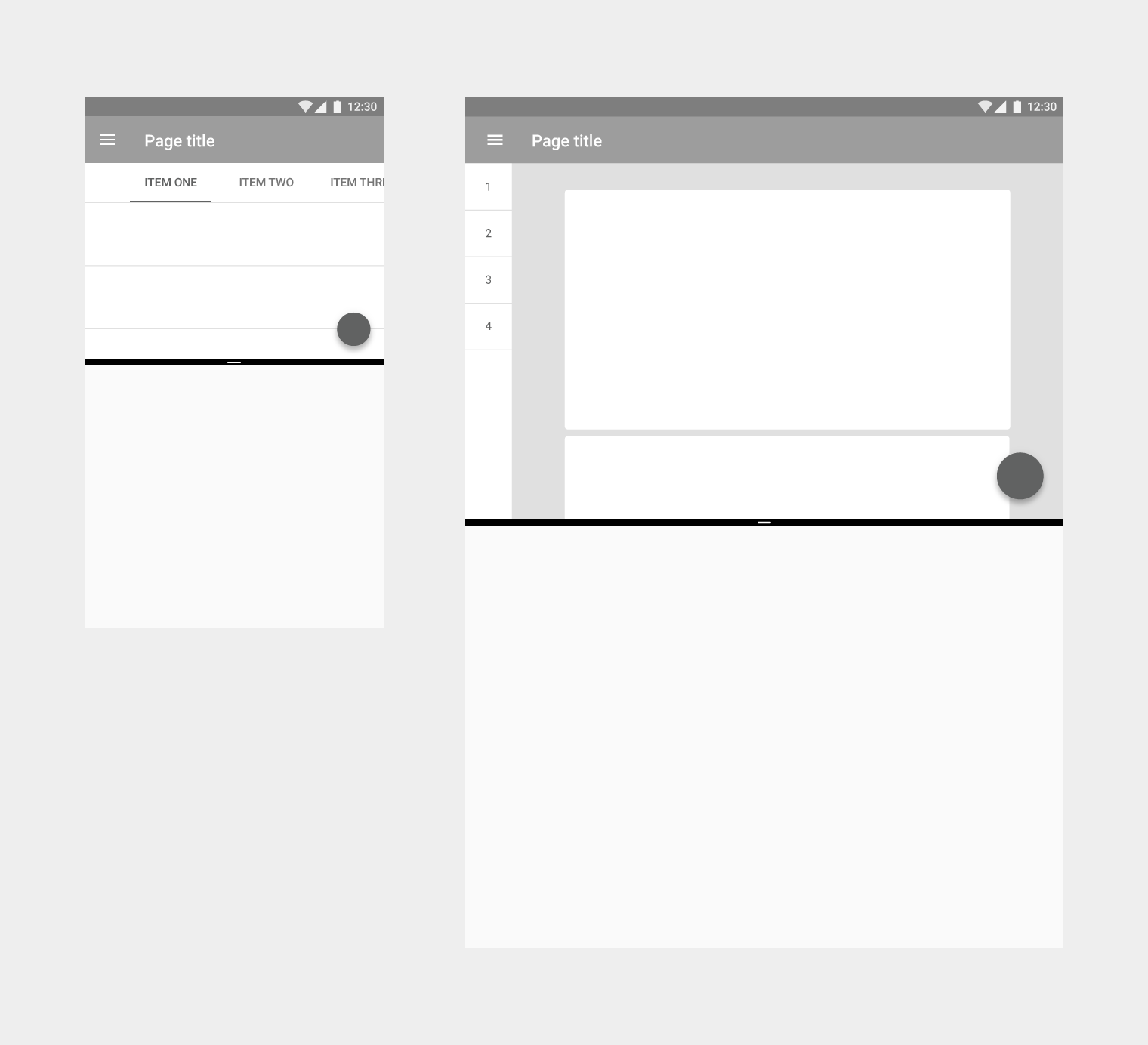
Design for condensed sizes
To simplify adapting your app for the various sizes of split-screen mode, it is recommended to design for the smallest size first.
Create a layout that works at 220dp wide or tall by condensing elements or removing non-essential ones. The layout may be scaled upward from there.