Skip to content
Material Design 2
Main Navigation
v3
v2
v1

English

简体中文
繁體中文
Español
Français
Русский
Português – Brasil
Deutsch
日本語
한국어
Italiano
Polski
Türkçe
čeština
magyar

English

简体中文
繁體中文
Español
Français
Русский
Português – Brasil
Deutsch
日本語
한국어
Italiano
Polski
Türkçe
čeština
magyar

Appearance

Sidebar Navigation

Material System

Introduction

Material studies

About our Material studies

Basil

Crane

Fortnightly

Owl

Rally

Reply

Shrine

Material Foundation

Environment

Surfaces

Elevation

Light and shadows

Layout

Understanding layout

Pixel density

Responsive layout grid

Spacing methods

Component behavior

Applying density

Navigation

Understanding navigation

Navigation transitions

Search

Color

The color system

Applying color to UI

Color usage

Text legibility

Dark theme

Typography

The type system

Understanding typography

Language support

Sound

About sound

Applying sound to UI

Sound attributes

Sound choreography

Iconography

Product icons

System icons

Animated icons

Shape

About shape

Shape and hierarchy

Shape as expression

Shape and motion

Applying shape to UI

Motion

Understanding motion

The motion system

Speed

Choreography

Customization

Interaction

Gestures

Selection

States

Communication

Confirmation & acknowledgement

Data formats

Data visualization

Empty states

Help & feedback

Imagery

Launch screen

Onboarding

Offline states

Writing

Machine learning

Machine learning patterns

Object detection: live camera

Object detection: static image

Barcode Scanning

Material Guidelines

Material Theming

Overview

Implementing your theme

Usability

Accessibility

Bidirectionality

Platform guidance

Android bars

Android fingerprint

Android haptics

Android icons

Android navigating between apps

Android notifications

Android permissions

Android slices

Android split-screen

Android swipe-to-refresh

Android text selection toolbar

Android widget

Cross-platform adaptation

Components

App bars: bottom

App bars: top

Backdrop

Banners

Bottom navigation

Buttons

Buttons: floating action button

Cards

Checkboxes

Chips

Data tables

Date pickers

Dialogs

Dividers

Image lists

Lists

Menus

Navigation drawer

Navigation rail

Progress indicators

Radio buttons

Sheets: bottom

Sheets: side

Sliders

Snackbars

Switches

Tabs

Text fields

Time pickers

Tooltips

On this page

Understanding navigation ​

Navigation enables users to move through an app.
Understanding navigation hero image

Types of navigation ​

Navigation is the act of moving between screens of an app to complete tasks. It’s enabled through several means: dedicated navigation components, embedding navigation behavior into content, and platform affordances.

Navigational directions ​

Based on your app’s information architecture, a user can move in one of three navigational directions:

  • Lateral navigation refers to moving between screens at the same level of hierarchy. An app’s primary navigation component should provide access to all destinations at the top level of its hierarchy.
  • Forward navigation refers to moving between screens at consecutive levels of hierarchy, steps in a flow, or across an app. Forward navigation embeds navigation behavior into containers (such as cards, lists, or images), buttons, links, or by using search.
  • Reverse navigation refers to moving backwards through screens either chronologically (within one app or across different apps) or hierarchically (within an app). Platform conventions determine the exact behavior of reverse navigation within an app.
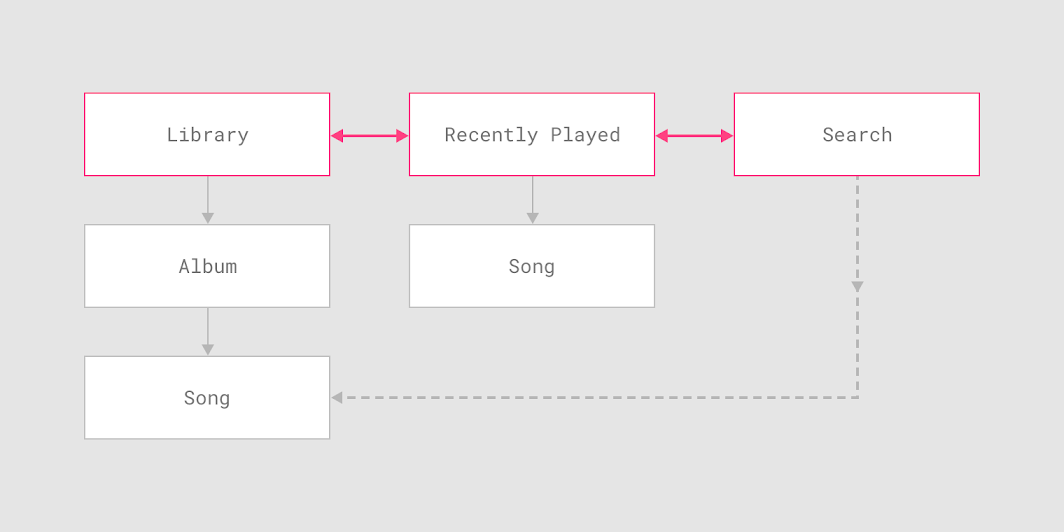
Lateral navigation allows movement between the top-level screens of this music app's information architecture
Lateral navigation allows movement between the top-level screens of this music app's information architecture.

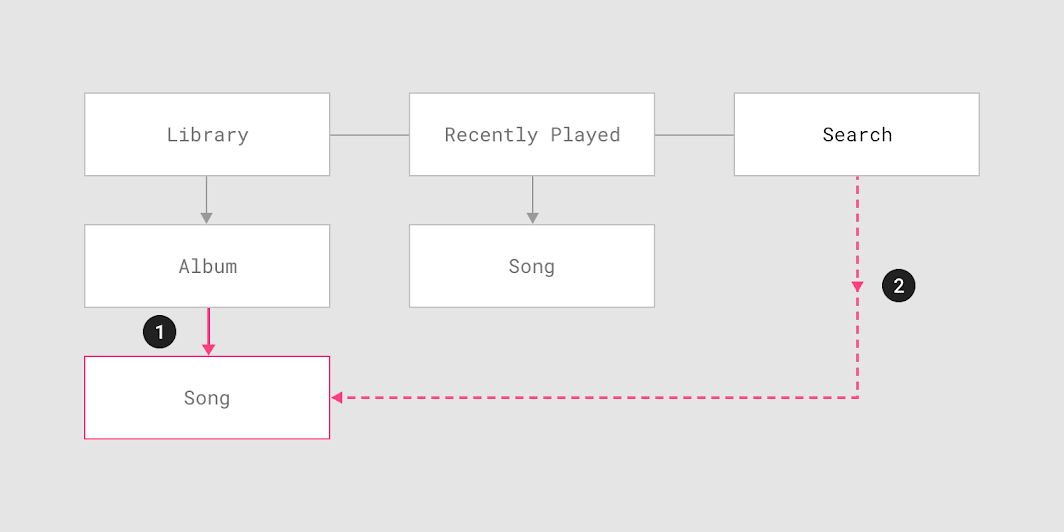
Users of this music app can use forward navigation to access a song in one of two ways
Users of this music app can use forward navigation to access a song in one of two ways:
1. Navigating hierarchically from a music album to a particular song
2. Searching for the song and navigating directly to it, bypassing screens in the hierarchy above the song (Library and Album)
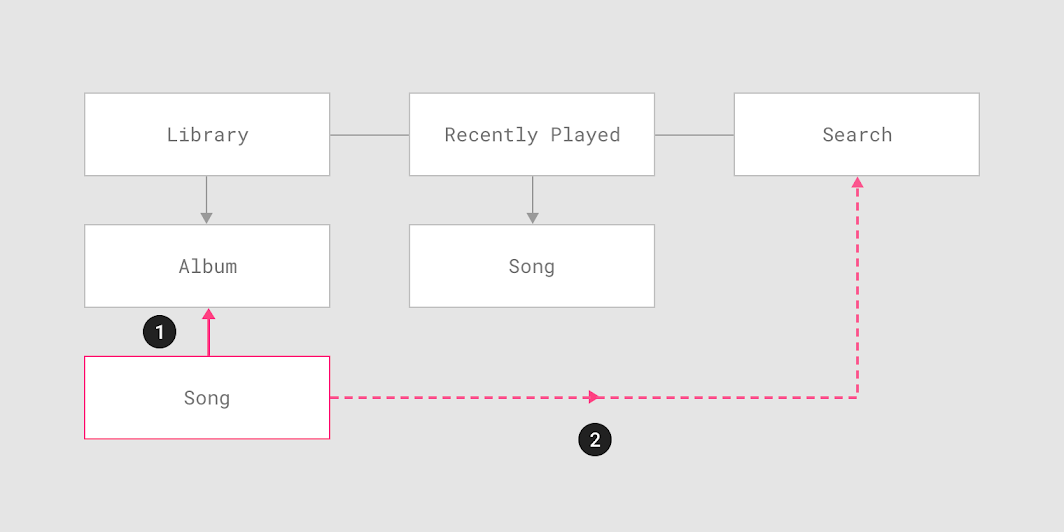
Upward in the hierarchy to the song’s parent, in this case the album containing the song
From a song screen, users may navigate in reverse in one of two ways:
1. Upward in the hierarchy to the song’s parent, in this case the album containing the song
2. Chronologically, to a search results screen, but only if the user just navigated to the song from that screen

Lateral navigation ​

Lateral navigation refers to movement between screens at the same level of hierarchy. It enables access to different app destinations and features, or pivoting between related items in a set.

Destinations and hierarchy ​

An app's primary navigation component should provide access to all destinations at the top level of its hierarchy. Apps with two or more top-level destinations can provide lateral navigation through a navigation drawer, bottom navigation bar, or tabs.

ComponentUse for# destinationsDevices
Navigation drawerTop-level destinations5+Mobile, Tablet, Desktop
Bottom navigation barTop-level destinations3-5Mobile
TabsAny level of hierarchy2+Mobile, Tablet, Desktop
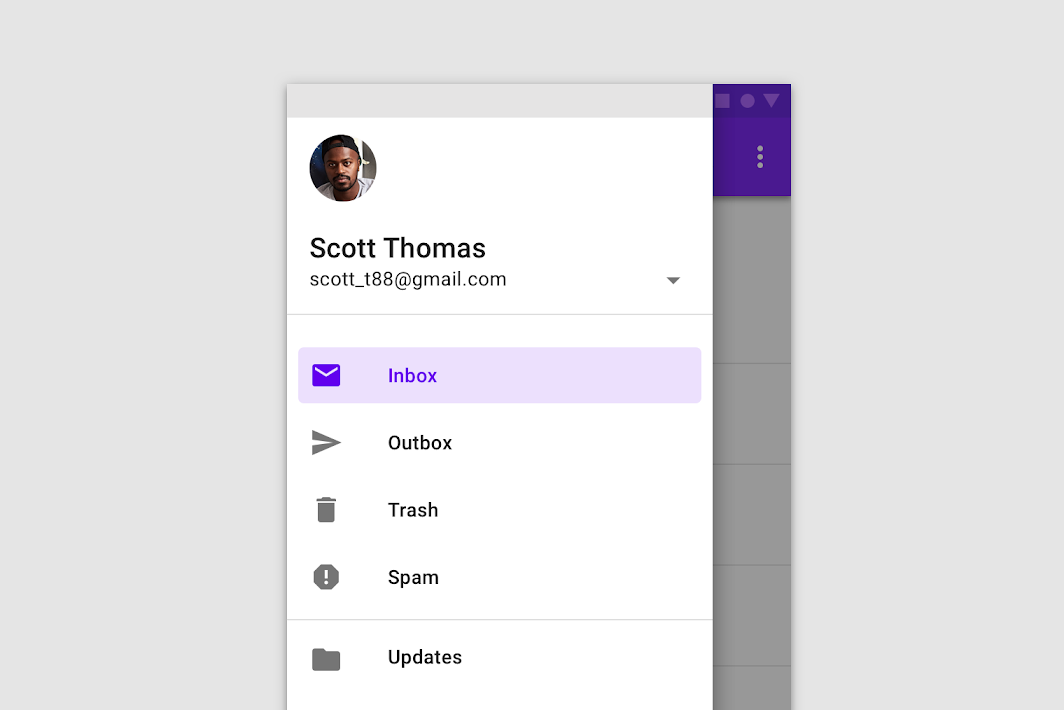
Navigation drawers are appropriate for five or more top-level destinations
Navigation drawers are appropriate for five or more top-level destinations, and can be used across device sizes for a consistent navigation experience.

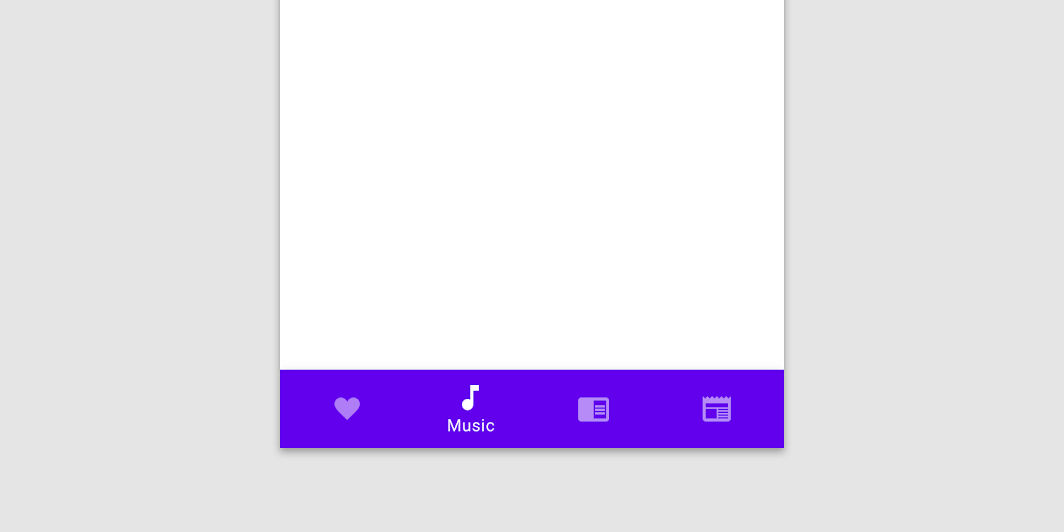
Bottom navigation bars provide access to 3-5 top-level destinations on mobile devices
Bottom navigation bars provide access to 3-5 top-level destinations on mobile devices. Their location, visibility, and persistence across screens allow quick pivoting between destinations.

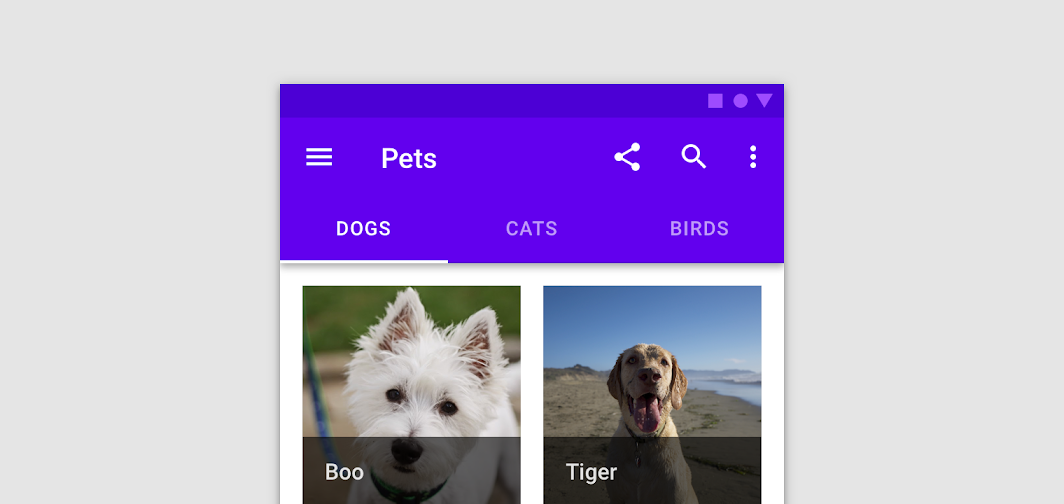
Tabs can be used at any level of an app's hierarchy to present two or more peer sets of data across screen sizes
Tabs can be used at any level of an app's hierarchy to present two or more peer sets of data across screen sizes.

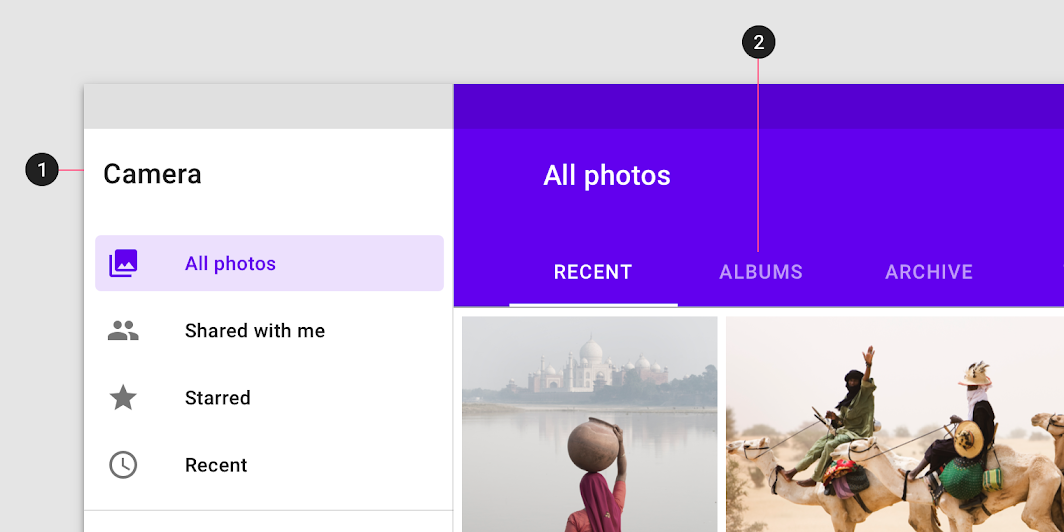
Do: tabs (2) can enable additional lateral navigation within an app's hierarchy when paired with a top-level navigation

Do

Tabs (2) can enable additional lateral navigation within an app's hierarchy when paired with a top-level navigation component like a navigation drawer (1).

Navigation drawer

Navigation drawers provide access to destinations in your app.

Related article

Bottom navigation

Bottom navigation bars allow movement between primary destinations in an app.

Related article

Tabs

Tabs organize content across different screens, data sets, and other interactions.

Related article

Forward navigation ​

Methods of forward navigation ​

Forward navigation refers to one of three types of movement between screens to complete a task:

  • Downward in an app's hierarchy to access deeper content, from a parent screen (higher level of hierarchy) to a child screen (lower level)
  • Sequentially through a flow, or an ordered sequence of screens, such as a checkout process
  • Directly from one screen to any other in the app, such as from a home screen to a screen deep in an app's hierarchy

Implementing forward navigation ​

While lateral navigation uses dedicated navigation components, forward navigation is often embedded into a screen’s content through a variety of components.

Forward navigation can be implemented using:

  • Content containers such as cards, lists, or image lists
  • Buttons that advance to another screen
  • In-app search on one or more screens
  • Links within content
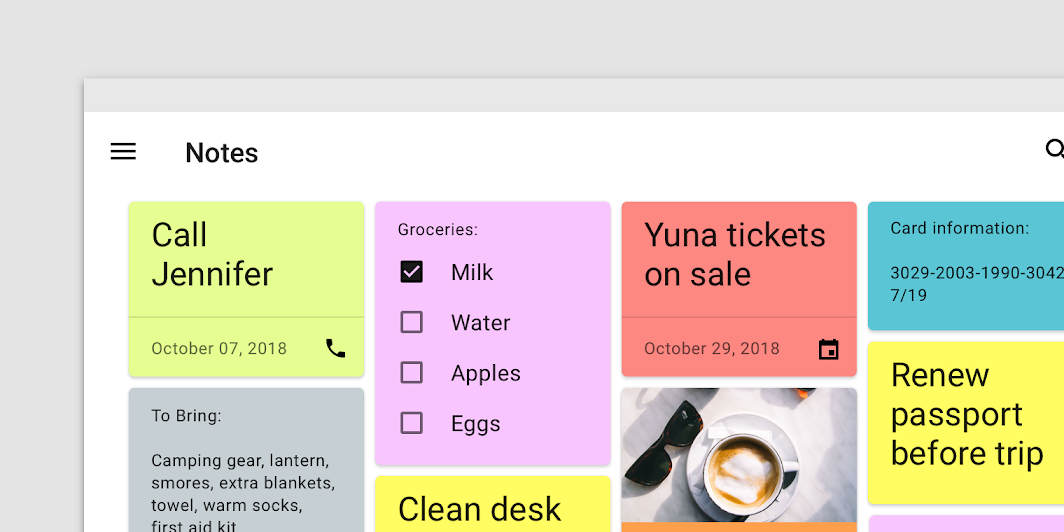
The cards on the home screen (parent) provide a preview of each note’s content and can be tapped to navigate
The cards on the home screen (parent) provide a preview of each note’s content and can be tapped to navigate to the full note (child).

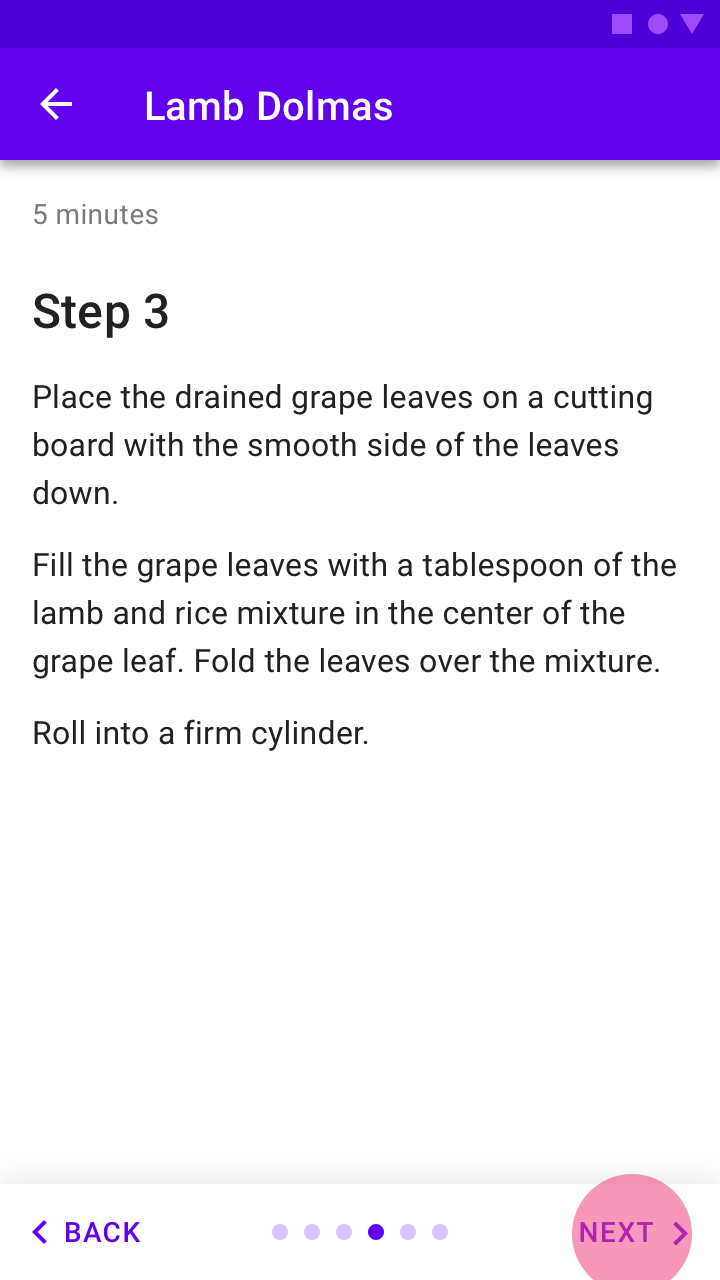
Buttons can provide a clear affordance to advance in a flow through their label, placement, and visual emphasis
Buttons can provide a clear affordance to advance in a flow through their label, placement, and visual emphasis.
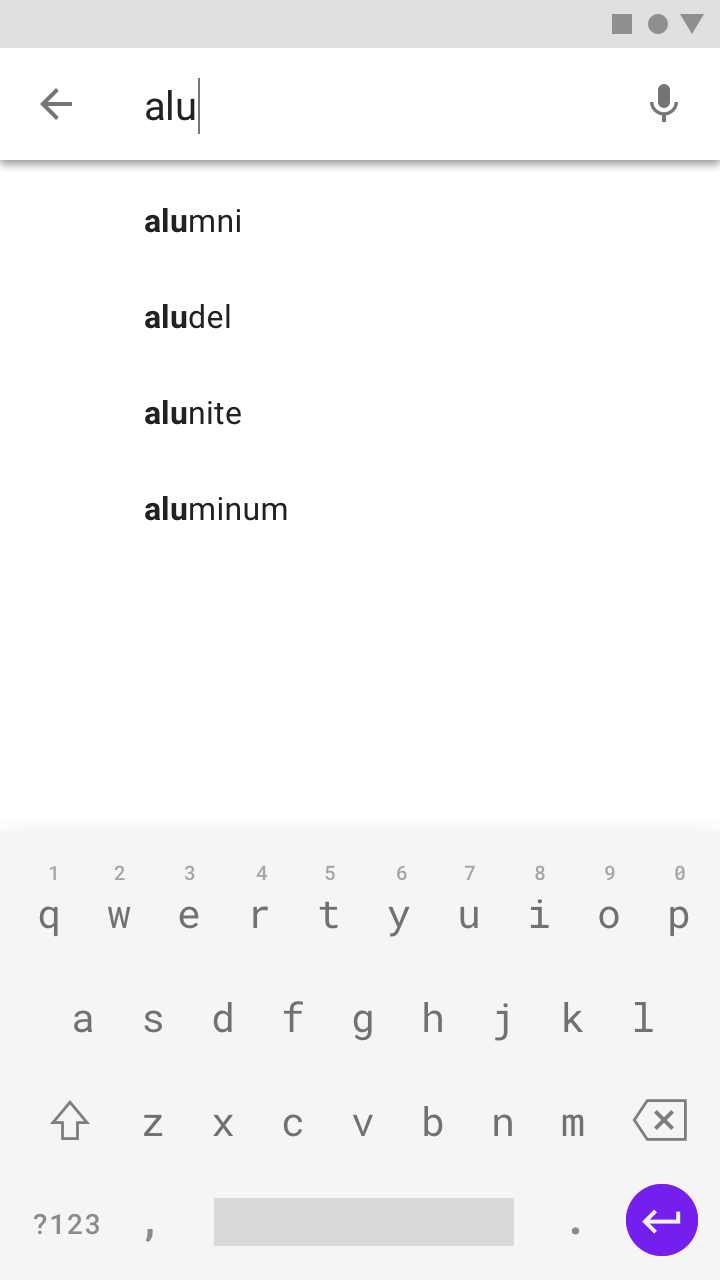
Search allows users to quickly access screens anywhere within an app’s information architecture
Search allows users to quickly access screens anywhere within an app’s information architecture.

Search

Search allows users to quickly find app content.

Related article

Reverse navigation ​

Reverse navigation refers to backward movement between screens. It can move users chronologically through their recent screen history, or upwards through an app's hierarchy.

Reverse chronological navigation ​

Reverse chronological navigation refers to navigating in reverse order through a user's history of recently viewed screens. It can move users between screens within an app or across multiple apps. For example, the Back button on a web browser is a form of reverse chronological navigation.

This type of navigation is typically provided by the operating system or platform. Individual platforms define how it behaves and how users can access that functionality.
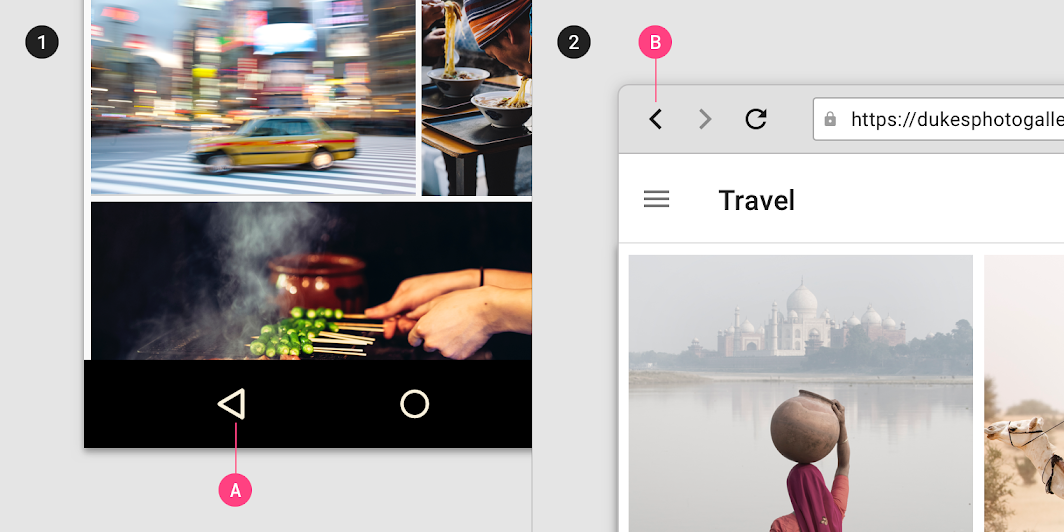
The Back button allows users to navigate recently viewed screens in reverse chronological order
The Back button allows users to navigate recently viewed screens in reverse chronological order.
1. The Back button (A) in the Android navigation bar
2. The Back button (B) in a web browser

Upward navigation ​

Upward navigation allows users to navigate one level upwards within a single app's hierarchy, until the app's home or top-level screen is reached. For example, the Up arrow in a top app bar is a form of upwards reverse navigation.

Upward navigation should be implemented for all child screens in an app and follow platform guidance. Android and web apps should use the Material Up action, while iOS apps should use the back button within an iOS Navigation Bar.
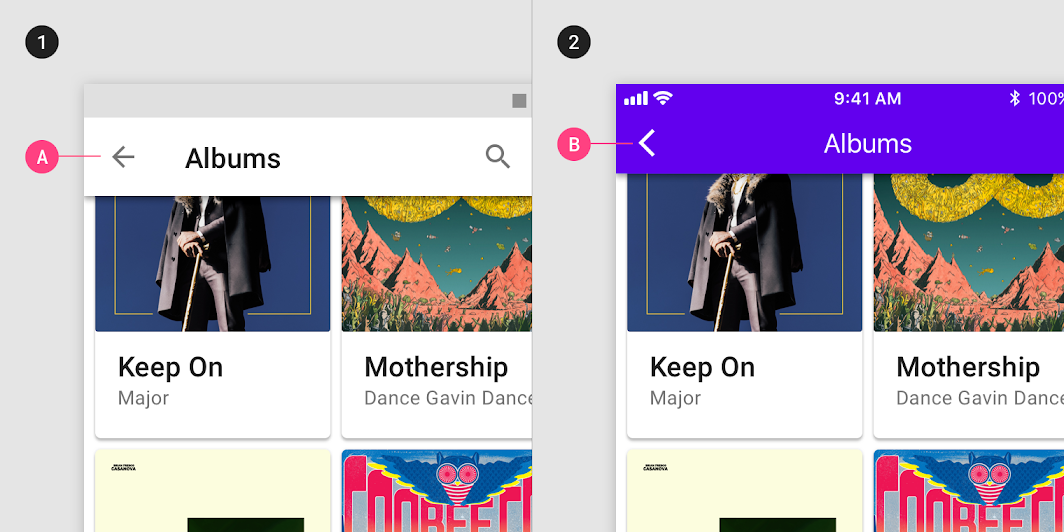
Upward navigation is possible on Android and web apps through an Up action
1. Upward navigation is possible on Android and web apps through an Up action (A)
2. Upward navigation is possible on iOS through the back button (B) in an iOS Navigation Bar

Considerations ​

The design and functionality of your app should account for both kinds of reverse navigation in your app's target platforms. To optimize a user's experience when navigating in reverse:

  • Return users to their prior screen position and state, such as their vertical scroll position, to speed up information recall and task resumption.
  • Provide clear messaging if a screen's prior state is no longer available, such as when information from a form has been cleared for privacy.
  • Clearly indicate child screens' relationship with screens above them in the hierarchy. For example, if a user moves directly to a child screen in your app, they should be able to identify the parent screen to which they can navigate upward.

Tasks and back stack

Android documentation on tasks and the back stack.

Related link

Android cross-platform adaptation

Material Design supports design and usability best practices across platforms to help create beautiful user experiences.

Related article

Designing back and up navigation

Android documentation on designing back and up navigation.

Related link

Navigation bars

Apple's Human Interface Guidelines for navigation bars.

Related link

Pager
Previous pageApplying density
Next pageNavigation transitions

Released under the Apache-2.0

Copyright © 2018-Present Google

https://m2.material.io/design/navigation/understanding-navigation.html

Released under the Apache-2.0

Copyright © 2018-Present Google