Skip to content
Material Design 2
Main Navigation
v3
v2
v1

English

简体中文
繁體中文
Español
Français
Русский
Português – Brasil
Deutsch
日本語
한국어
Italiano
Polski
Türkçe
čeština
magyar

English

简体中文
繁體中文
Español
Français
Русский
Português – Brasil
Deutsch
日本語
한국어
Italiano
Polski
Türkçe
čeština
magyar

Appearance

Sidebar Navigation

Material System

Introduction

Material studies

About our Material studies

Basil

Crane

Fortnightly

Owl

Rally

Reply

Shrine

Material Foundation

Environment

Surfaces

Elevation

Light and shadows

Layout

Understanding layout

Pixel density

Responsive layout grid

Spacing methods

Component behavior

Applying density

Navigation

Understanding navigation

Navigation transitions

Search

Color

The color system

Applying color to UI

Color usage

Text legibility

Dark theme

Typography

The type system

Understanding typography

Language support

Sound

About sound

Applying sound to UI

Sound attributes

Sound choreography

Iconography

Product icons

System icons

Animated icons

Shape

About shape

Shape and hierarchy

Shape as expression

Shape and motion

Applying shape to UI

Motion

Understanding motion

The motion system

Speed

Choreography

Customization

Interaction

Gestures

Selection

States

Communication

Confirmation & acknowledgement

Data formats

Data visualization

Empty states

Help & feedback

Imagery

Launch screen

Onboarding

Offline states

Writing

Machine learning

Machine learning patterns

Object detection: live camera

Object detection: static image

Barcode Scanning

Material Guidelines

Material Theming

Overview

Implementing your theme

Usability

Accessibility

Bidirectionality

Platform guidance

Android bars

Android fingerprint

Android haptics

Android icons

Android navigating between apps

Android notifications

Android permissions

Android slices

Android split-screen

Android swipe-to-refresh

Android text selection toolbar

Android widget

Cross-platform adaptation

Components

App bars: bottom

App bars: top

Backdrop

Banners

Bottom navigation

Buttons

Buttons: floating action button

Cards

Checkboxes

Chips

Data tables

Date pickers

Dialogs

Dividers

Image lists

Lists

Menus

Navigation drawer

Navigation rail

Progress indicators

Radio buttons

Sheets: bottom

Sheets: side

Sliders

Snackbars

Switches

Tabs

Text fields

Time pickers

Tooltips

On this page

Barcode scanning ​

Using machine learning, a device’s live camera can read data encoded in most standard barcode formats.
Barcode scanning hero image

Usage ​

Barcodes are a simple, convenient way of transferring complex or structured data from the real world to a device. ML Kit’s Barcode Scanning API allows your app to read most standard barcode formats without having users switch to a separate barcode-reading application.

Scanning barcodes can help users with simple identification and content tasks, such as looking up a product to purchase, accessing event details, or completing a form.

These design guidelines address barcode scanning using a live camera feed.

Barcode scanning provides users with a convenient alternative to manually searching for product information or entering data.

ML Kit API docs

Developer guides for barcode scanning

Related link

Example – Android

ML Kit showcase app for Android

Related link

Principles ​

Design for this feature is based on the following principles:

Navigate with a device camera

Instead of typing a search term, the device camera is used as a “remote control” to scan barcodes.

To educate users about how to scan barcodes with their camera, provide onboarding and persistent instructions.

A brief, animated onboarding experience can describe how to scan a barcode by having users correctly position their device camera.

Keep camera clear and legible

Align the camera UI components to the top and bottom edges of the screen, ensuring that text and icons remain legible when placed in front of an image.

Any non-actionable elements displayed in front of the live camera feed should be translucent to minimize obstructing the camera.
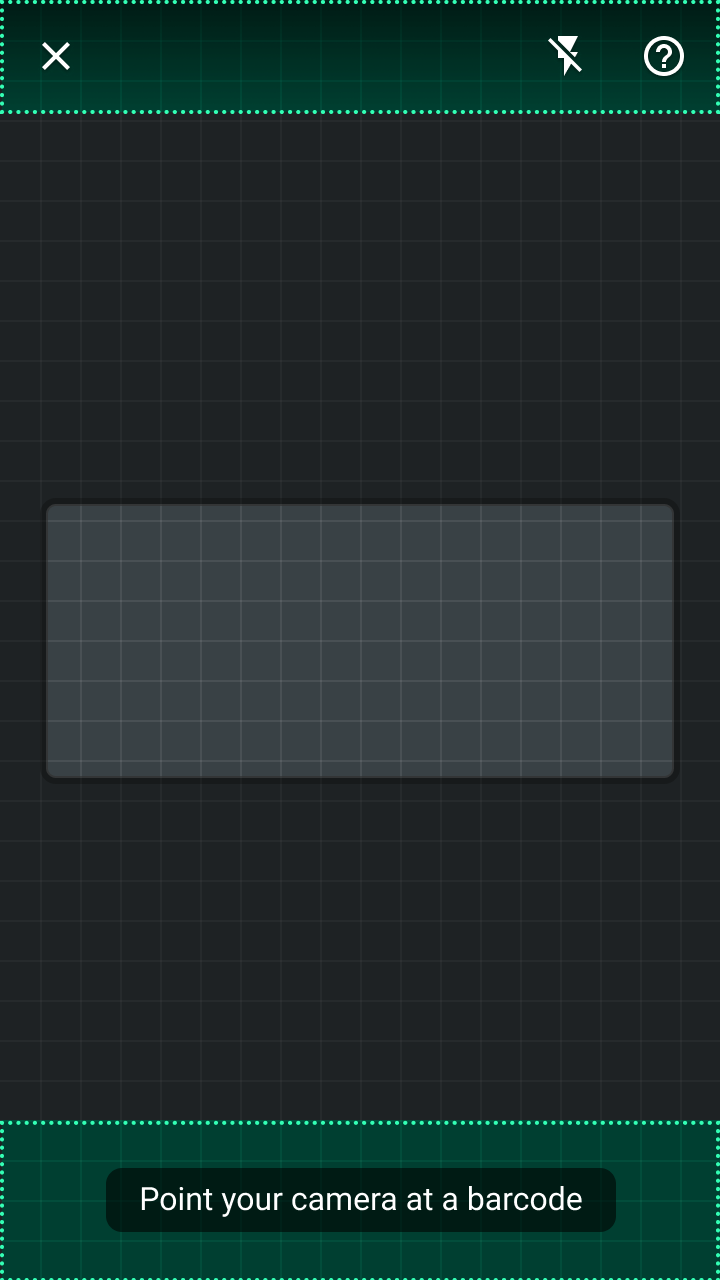
Most elements of the experience are placed along the top and bottom edges of the screen to maximize viewing
Most elements of the experience are placed along the top and bottom edges of the screen to maximize viewing the camera’s feed.

Provide feedback

Using a camera to scan barcodes introduces unique usage requirements. Image quality needs to be adequate, and users need to be aware of how to fix image issues caused by lighting or too much distance from a barcode.

Error states should be communicated with multiple design cues (such as components and motion) and include explanations of how users can improve their search.
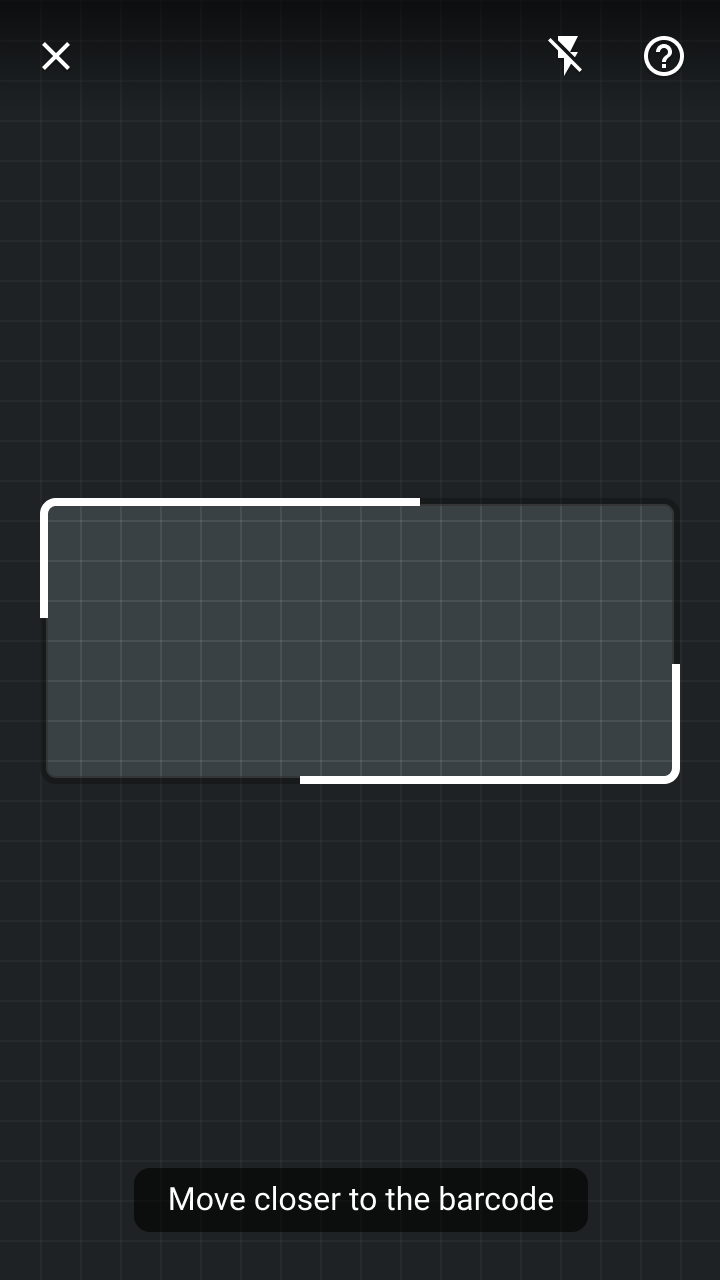
The barcode frame and tooltip both indicate the user needs to move closer to “complete” scanning the barcode
The barcode frame and tooltip both indicate the user needs to move closer to “complete” scanning the barcode.

Components ​

Live camera barcode scanning uses existing Material Design components and new elements specific to camera interaction. For code samples and demos of new elements (such as the barcode frame), check out the source code for the ML Kit Material Design showcase app on Android.
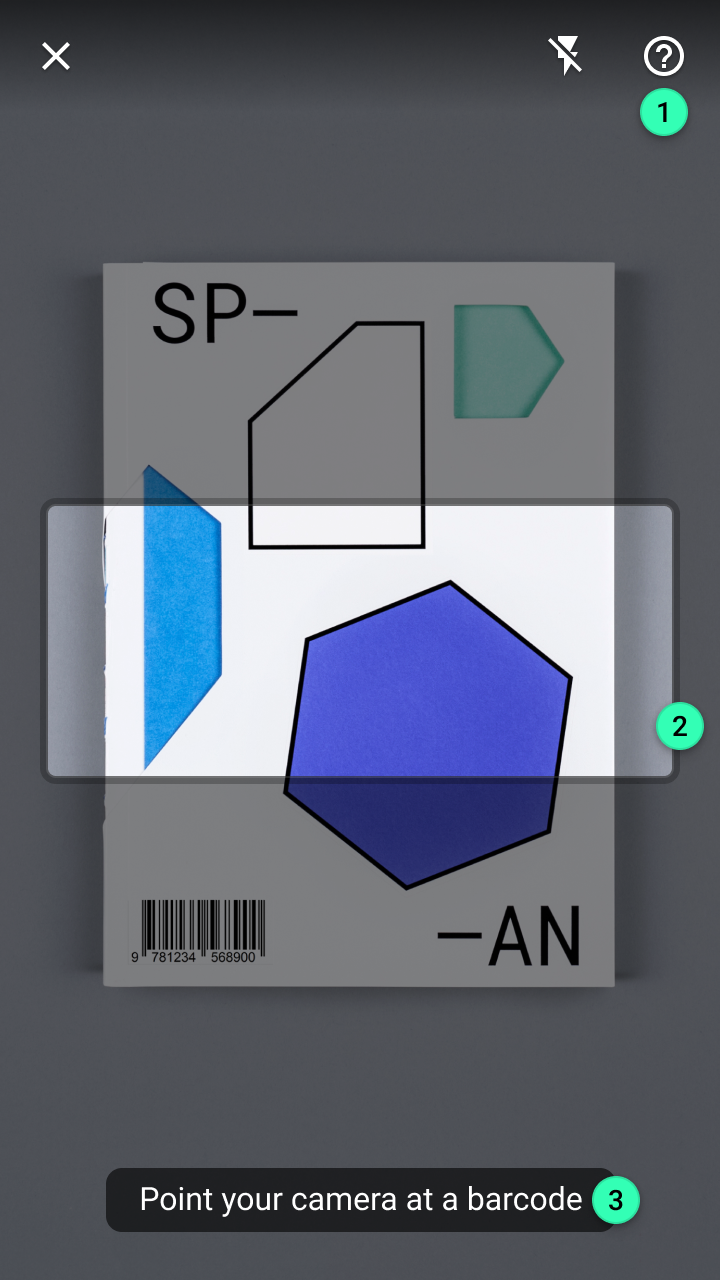
Key elements across the stages of a barcode scanning experience
Key elements across the stages of a barcode scanning experience:
1. Top app bar
2. Barcode frame
3. Tooltip
4. Modal bottom sheet
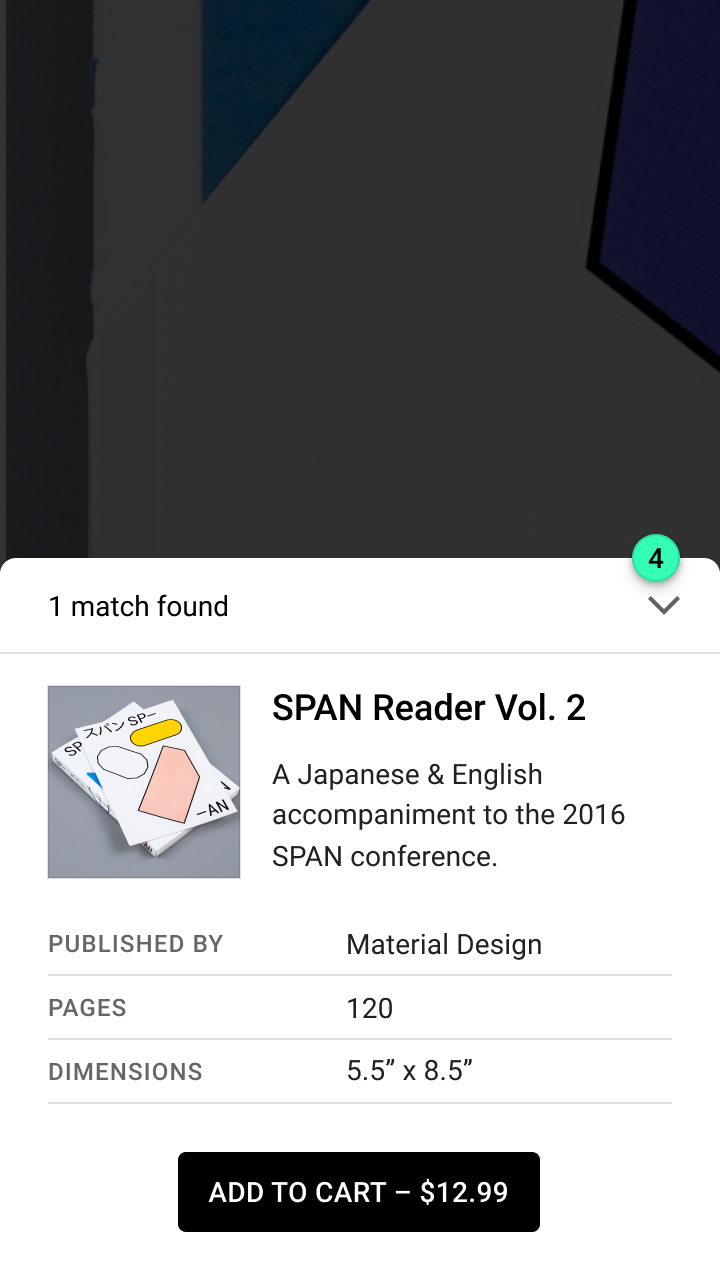
Components

Example – Android

ML Kit showcase app for Android

Related link

Top app bar ​


The top app bar provides persistent access to the following actions:

  • A button to exit the search experience
  • A toggle to improve brightness (using the camera’s flash)
  • A Help section for troubleshooting search issues
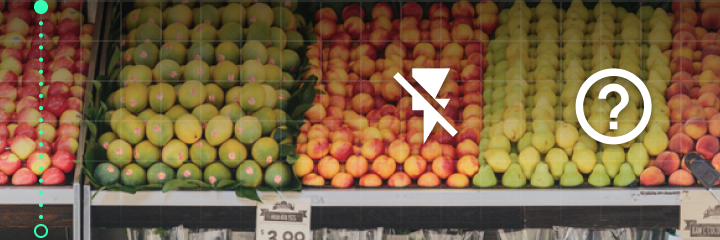
Do: use a gradient scrim or solid color for the top app bar’s container to ensure its actions are legible over a camera feed

Do

Use a gradient scrim or solid color for the top app bar’s container to ensure its actions are legible over a camera feed.

Top app bar

The top app bar displays information and actions relating to the current view.

Related article

Barcode frame ​

The barcode frame is an area in the center of the screen where the user can scan a barcode. By default, the frame is a square, but its size and aspect ratio should be adjusted by your app to match supported barcode types.

It serves three purposes:

  1. Confirmation: The frame shape fits the dimension of a single barcode, so it’s clear that only one barcode can be scanned at a time.
  2. Legibility: While simple barcode formats can be read from a distance, complex barcode formats (such as PDF417) may need a closer, higher-quality image to be accurately read. By placing a partial detection border over the barcode frame, the UI indicates that the user should move closer to scan.
  3. Activity: The border of the frame pulses during the “sensing” phase to indicate the app is looking for barcodes to scan.
The barcode frame provides an animated guide that shows: where a barcode should be scanned, if it needs to be enlarged, and the current state of the scan.

States of the barcode frame:

1. Sensing uses a pulsing animation to indicate the app is looking for barcodes to scan
2. Display a partial border over the frame (along with a tooltip) to indicate a user needs to move closer to a barcode
3. Searching is expressed through an indeterminate progress indicator across the barcode frame
4. Errors transform the continuous barcode frame stroke style to a dotted style

Tooltip ​

Tooltips display informative text to users. For example, they express both states (displaying a message like “Searching…”) and prompt the user to the next step (displaying a message like, “Point your camera at a barcode”).
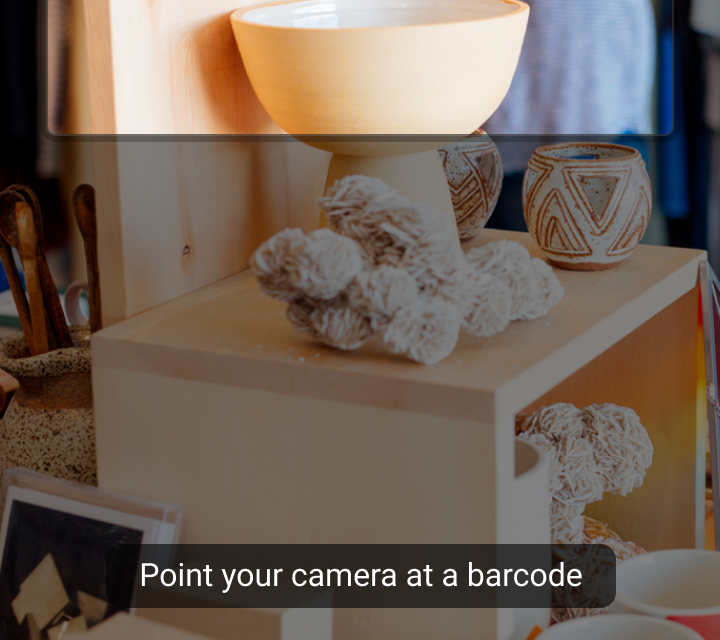
Do: write short messages using terms appropriate for your audience

Do

Write short messages using terms appropriate for your audience.
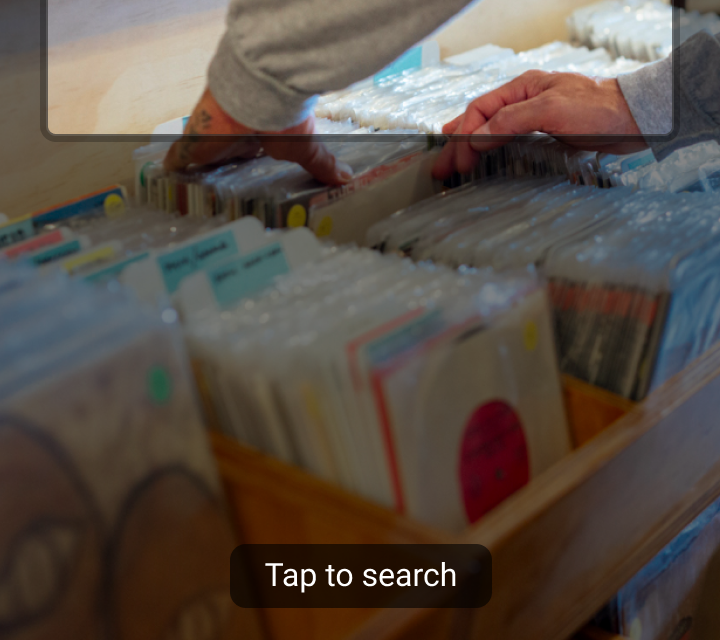
Don’t write tooltips with action verbs, such as “Tap to search,” as they are not actionable

Don't

Don’t write tooltips with action verbs, such as “Tap to search,” as they are not actionable.

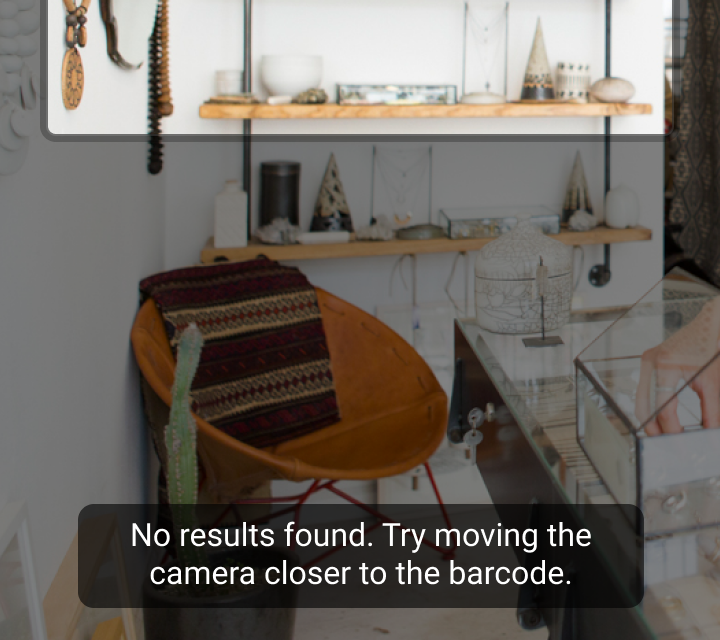
Don’t place error messages in a tooltip

Don't

Don’t place error messages in a tooltip. Errors should be placed in a banner for increased emphasis and space to display actions.

Tooltips

Display informative text when users hover over, focus on, or tap an element

Related article

Modal bottom sheet ​

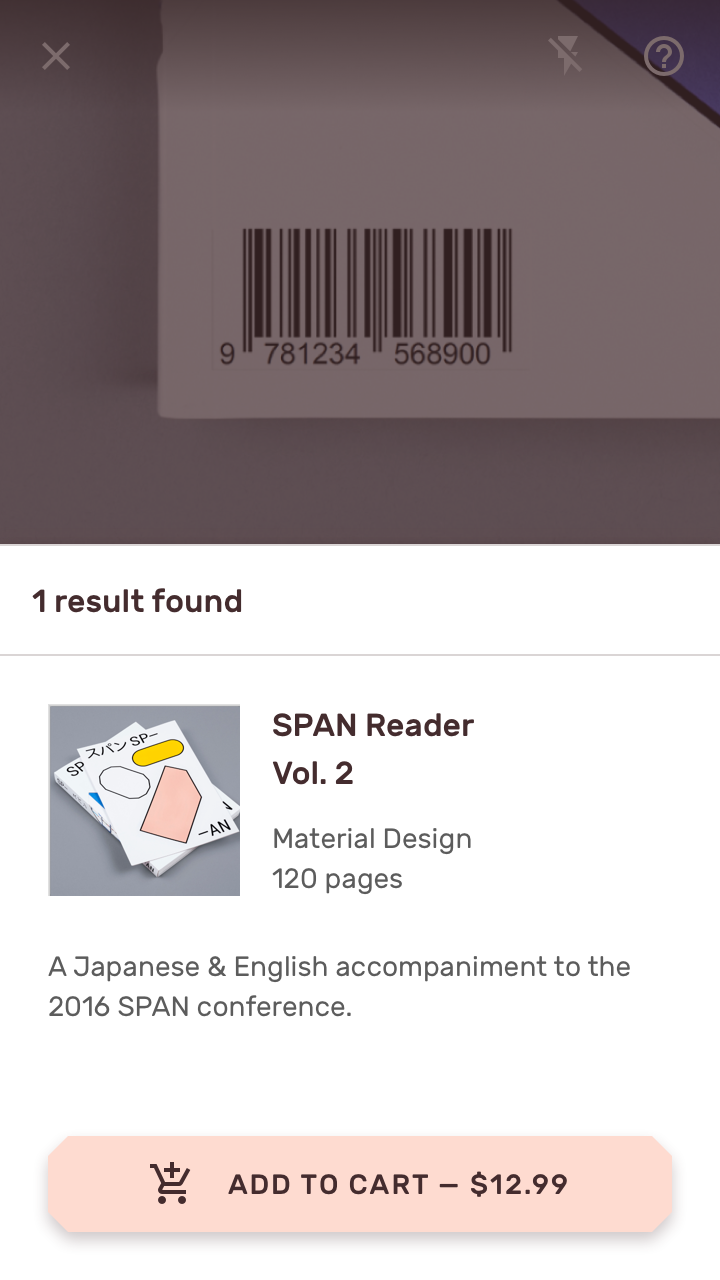
Modal bottom sheets provide access to a barcode’s information while the user remains in the barcode scanning feature. The bottom sheet’s layout and content depend on the type of data returned by the barcode, for example:

  • Structured data (such as contact information) can be displayed in text fields for scanning and editing
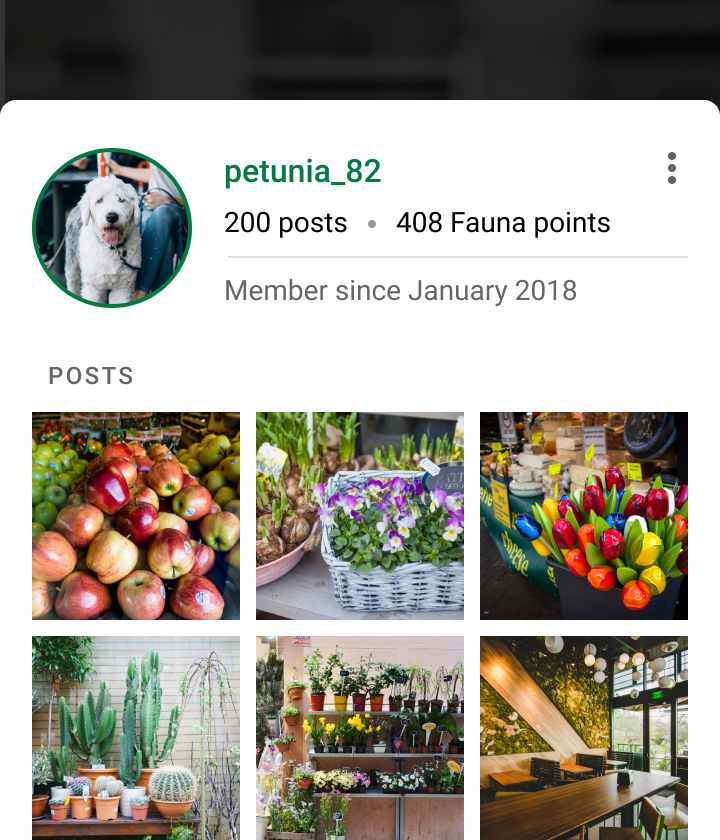
  • Information from a database should be displayed in a style appropriate to viewing the content. Content types will vary. For example, social media content will have a different structure than content from a retail product.

Displaying results ​

If it’s faster or easier for the user to complete their task on another screen in an app, present the barcode information on that screen instead of a modal bottom sheet. Refer to the Experience section for more information on when and where in the app to communicate barcode information.
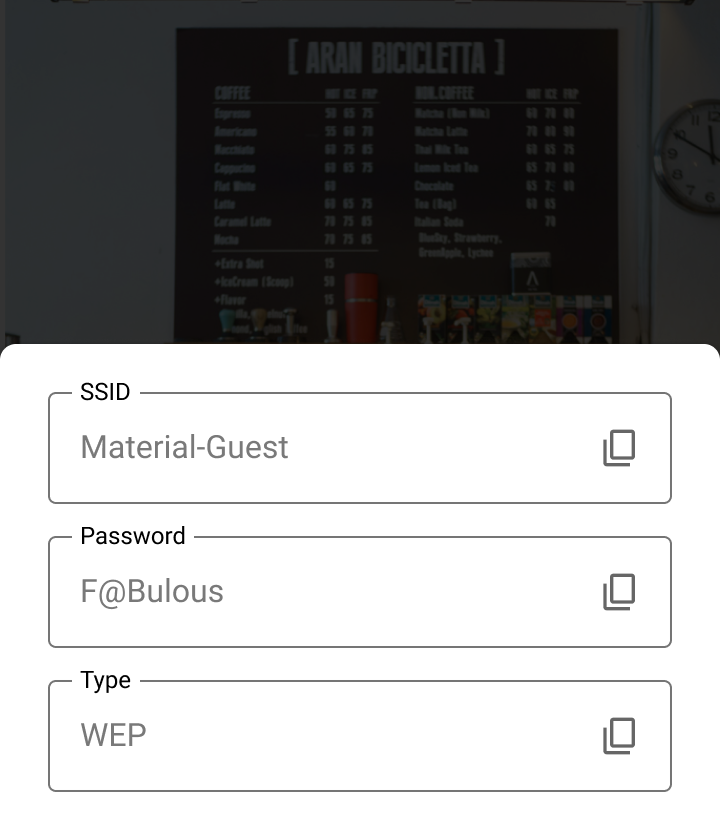
Text fields are well-suited to presenting structured data in a bottom sheet
Text fields are well-suited to presenting structured data in a bottom sheet. Each field label and input can communicate a data “key” and its “value”, such as the name of a Wi-Fi network.
The layout of a modal bottom sheet can be customized to match a barcode’s information
The layout of a modal bottom sheet can be customized to match a barcode’s information, such as a social media user profile.

Bottom sheets

Surfaces containing supplementary content that are anchored to the bottom of the screen.

Related article

Experience ​

Live camera barcode scanning happens in three phases:

  1. Sense: Use the camera to look for input
  2. Recognize: Detect a barcode
  3. Communicate: Display barcode results in-line or on another screen

Sense ​

“Sensing” refers to the camera looking for barcodes in the live camera feed. Barcode scanning begins when a user opens the barcode feature in an app.

During this phase, the app should:

  • Describe how the feature works
  • Communicate the app’s actions
  • Guide adjustments to how the user controls the camera

Do

Explain the interaction with a one-screen onboarding experience. Animation is recommended to demonstrate to a user how to move their device.

Do

Communicate that the app is looking for barcodes. The barcode frame uses a pulsing animation to indicate the app is “scanning” the camera feed, along with a tooltip prompting the user to center a barcode in the frame.

Guide adjustments

Environmental conditions can make it difficult to scan a barcode, such as locations that are too bright or too dark.
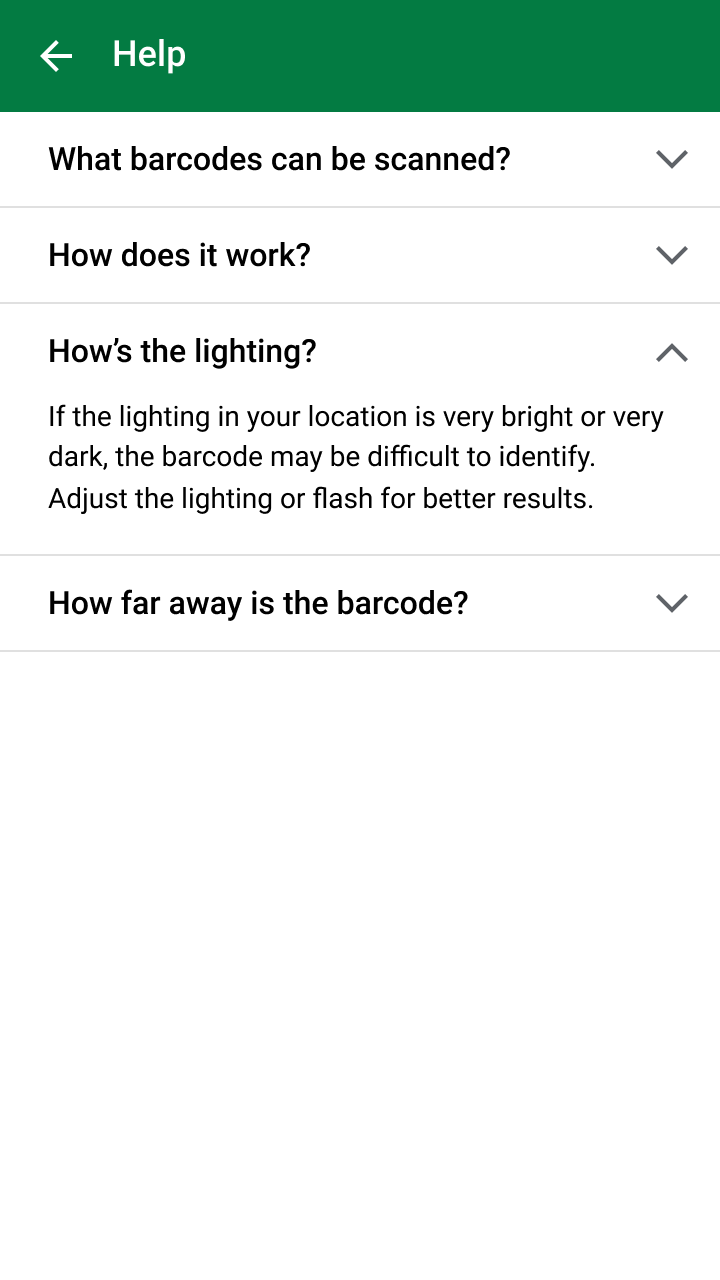
A Help section can help users identify and resolve problems with their experience
A Help section can help users identify and resolve problems with their experience. It can provide education on topics like proper camera angles, distance, and lighting conditions.

Recognize ​

When a barcode has been detected by the camera, the app should:

  1. Pause the camera and read the barcode’s value
  2. Display the value immediately if it’s structured data
  3. Search and display search progress if the barcode’s value needs to be looked up

In this phase, a barcode is detected in the camera and read by the Barcode Scanning API. The camera feed pauses to prevent scanning another barcode.

Barcodes containing structured data recognized by the API (such as location coordinates and calendar events) can be presented immediately to the user. If a barcode’s data is unstructured, its detailed information is retrieved from a database. The app displays a loading state while this information is retrieved.

Do

Use multiple design methods to indicate a supported barcode has been detected. The barcode frame’s border turns from transparent to opaque while the camera feed pauses.

Do

If your app needs to look up a barcode’s value, display an indeterminate progress indicator and tooltip message to indicate that results are pending.

Make corrections ​

The detection of a barcode doesn’t guarantee your app will find results. The following issues could occur:

  • No relevant results: A barcode that scans successfully might not contain information relevant to your app or use case, such as scanning a barcode from an unrelated source.
  • Lost network connection: If the barcode’s value is looked up in an online database, the data request can fail without an internet connection.
  • Small barcode size: While simple barcode formats can be read from a distance, complex barcode formats (such as PDF417) may require a closer, higher-quality image to be read. To indicate the user must move closer to the barcode before it can be scanned, set a minimum scanning size for your app’s accepted barcode formats and use multiple design cues (such as in the barcode frame and tooltip).
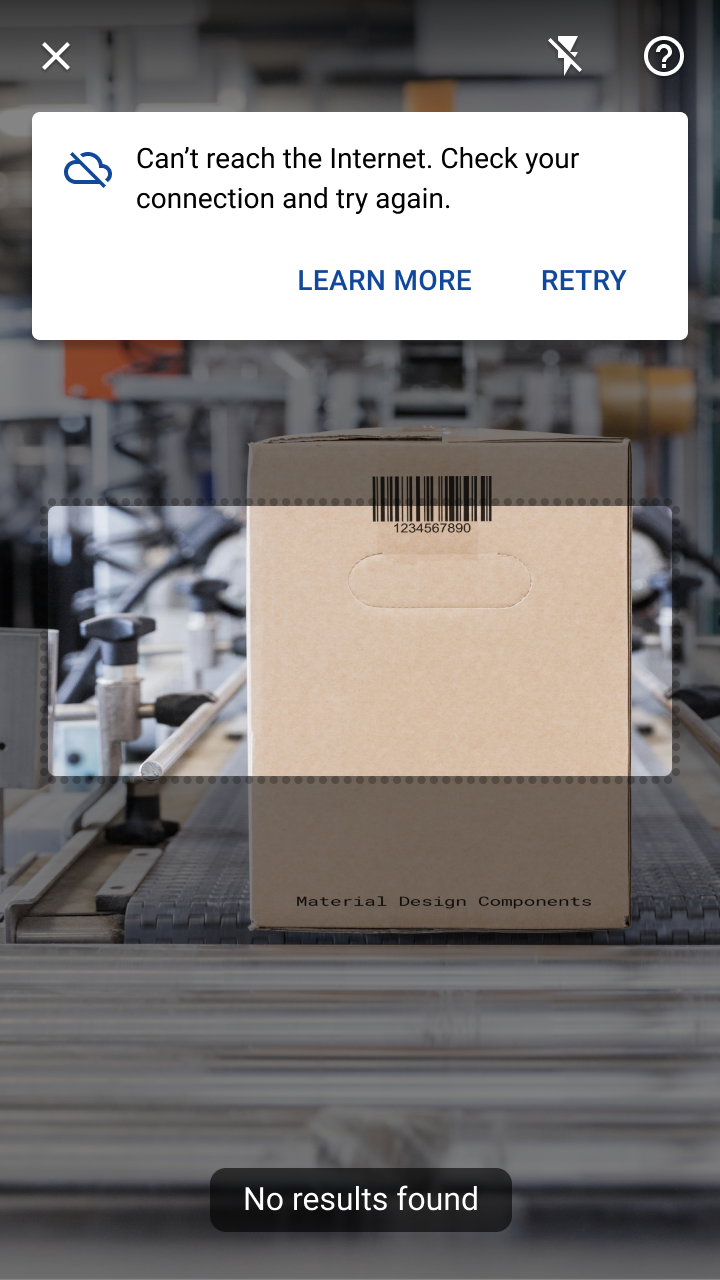
Do: use a banner to indicate if no matching objects were identified

Do

Use a banner to indicate if no matching objects were identified. Provide options to visit a dedicated Help section or retry with another image.

Do

Set a minimum scanning size for your app’s accepted barcode formats to ensure they are accurately scanned. Instruct the user to move closer to the barcode until it reaches the minimum scanning size.

Errors + graceful failure

How to handle ML errors

Related link

Communicate ​

Results from a barcode scan are displayed in a number of possible ways:

  • In front of the camera (in a modal bottom sheet or dialog)
  • Upon exiting the barcode scanning feature, on the screen where the barcode information can be used

To tailor the UI to your barcode use case, these navigation patterns and components are recommended:

Use case exampleRemain in barcode scanner?Results display location
Browse products in a storeYesModal bottom sheet
Add a contactYes, until the user saves itModal bottom sheet or a full-screen dialog
Complete a formNo, return to the formFill the relevant fields in form for the user

Do

Display barcode results over the camera so that users can scan more items without reopening the scanner.

Do

Editing and saving information (such as a new contact) can be done quickly in the barcode scanner. Present structured data in editable text fields, with an option to save and exit the scanner.

Do

Scanning a barcode can provide an alternative to manually filling out fields in a form. After scanning is successful, the user should be returned to the form to complete their task.

Theming ​

Shrine Material theme ​

Barcode scanning is used in the Shrine app’s purchase flow.
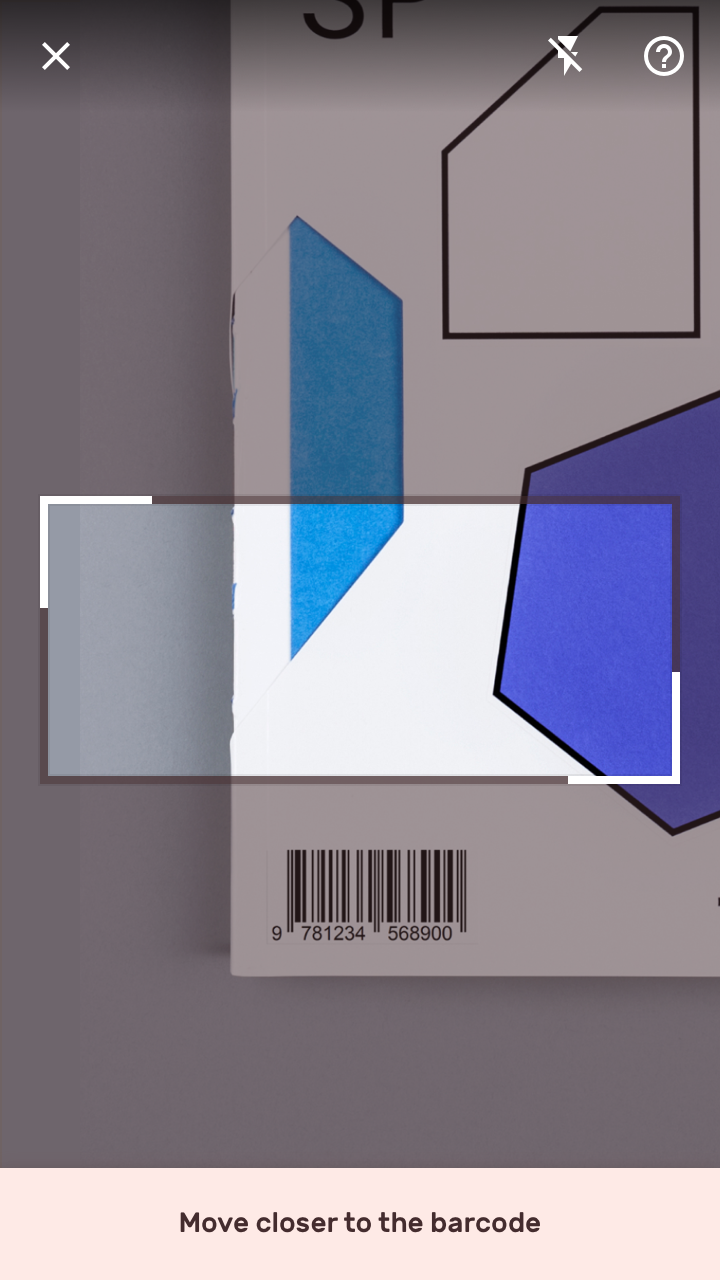
Shrine’s barcode scrim and tooltip text are emphasized with dark colors that contrast with their light backgrounds
Shrine’s barcode scrim and tooltip text are emphasized with dark colors that contrast with their light backgrounds.
Visual search results use Shrine’s brand colors, typography, and shape styles
Visual search results use Shrine’s brand colors, typography, and shape styles.

Barcode Frame ​

Shrine’s barcode frame uses its On Primary color for its scrim. The frame border has sharp corners that express the brand logo’s geometric shape.
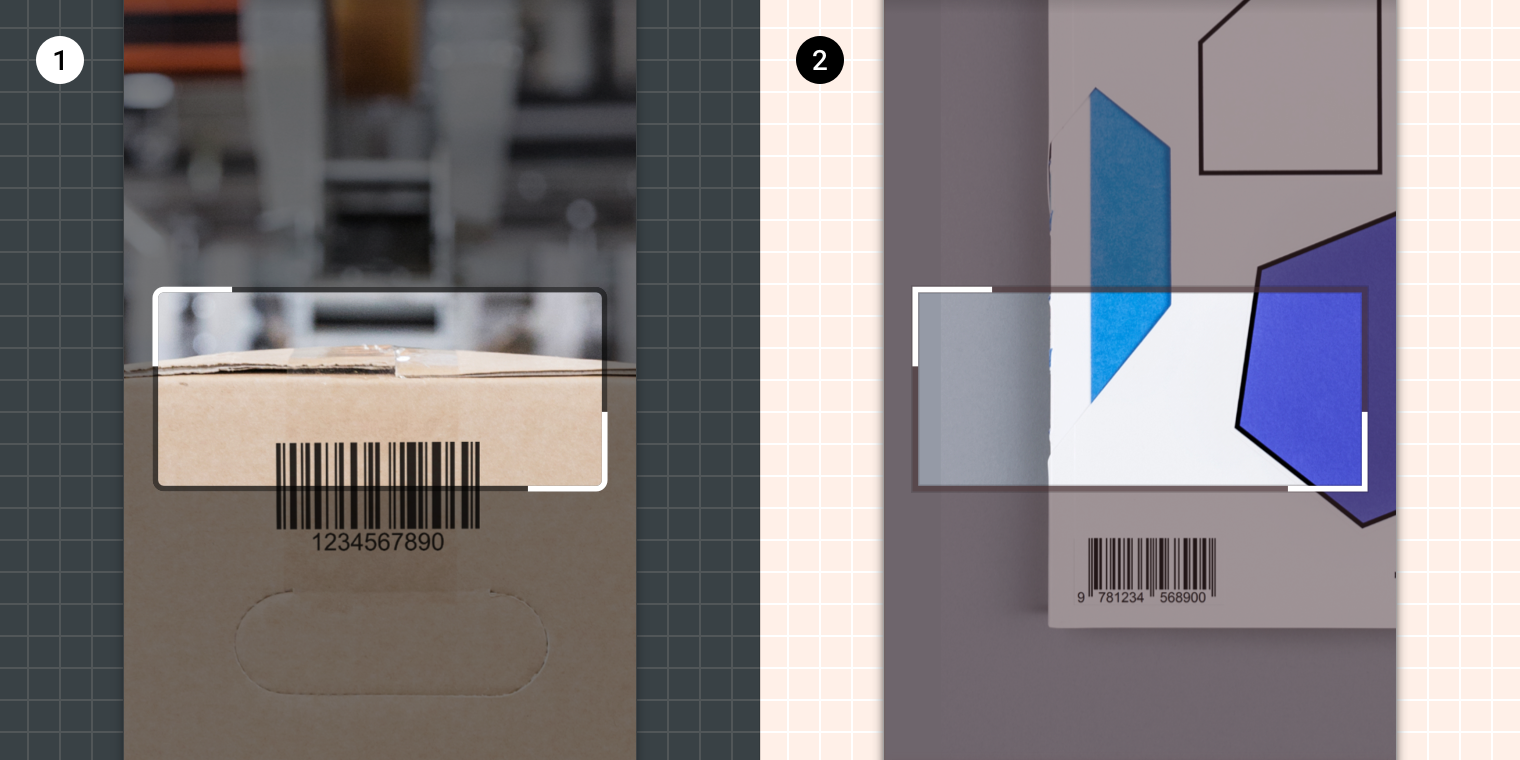
The baseline barcode frame uses #000000 for its scrim color with a rounded frame border
1. The baseline barcode frame uses #000000 for its scrim color with a rounded frame border.
2. Shrine’s barcode frame uses Shrine Pink 900 (#442C2E) for its scrim color with a sharp frame border.

Tooltip ​

Shrine’s tooltip is emphasized by using custom colors, typography, and placement.
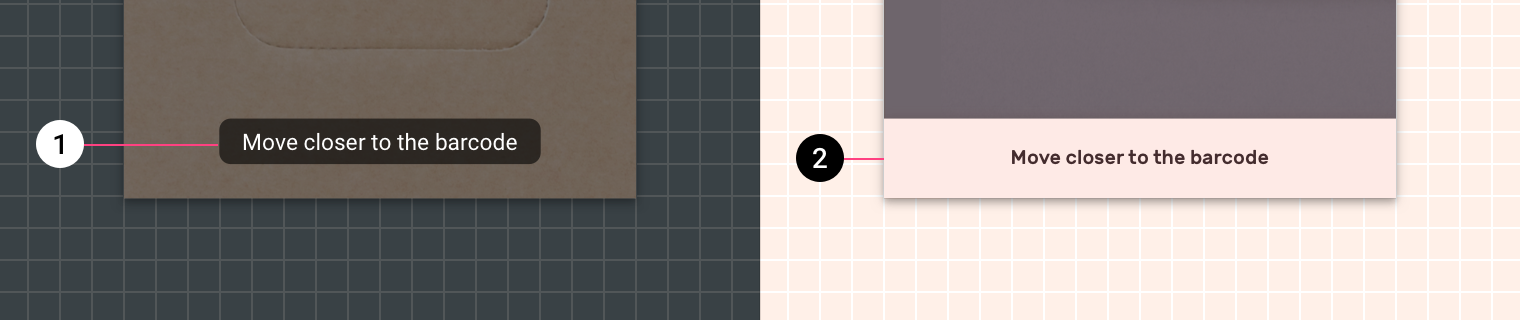
Tooltips are typically low-emphasis components whose width is based on their text
1. Tooltips are typically low-emphasis components whose width is based on their text.
2. Shrine’s tooltip uses custom colors, typography, and extends its container to the edges of the screen.

Shrine

Shrine is a lifestyle and fashion brand that demonstrates how Material Design can be used in e-commerce.

Related article

Pager
Previous pageObject detection: static image
Next pageOverview

Released under the Apache-2.0

Copyright © 2018-Present Google

https://m2.material.io/design/machine-learning/barcode-scanning.html

Released under the Apache-2.0

Copyright © 2018-Present Google